How to Do a Hard Refresh in Chrome to Fix Stale Content
Stumbling upon a website that looks broken or outdated is a common headache, but the fix is often surprisingly simple. A browser hard refresh in Chrome is usually all it takes. By using shortcuts like Ctrl + Shift + R on Windows or Cmd + Shift + R on macOS, you're essentially telling Chrome to bypass its saved files and grab a brand-new version of the page. This one move can instantly clear up visual bugs or frustrating loading errors.
Why Chrome Shows You Outdated Content
Ever found yourself hitting the refresh button over and over, only to see the same old content staring back at you? You're not alone. This happens because Chrome is built for speed, and its secret weapon is a feature called the browser cache.
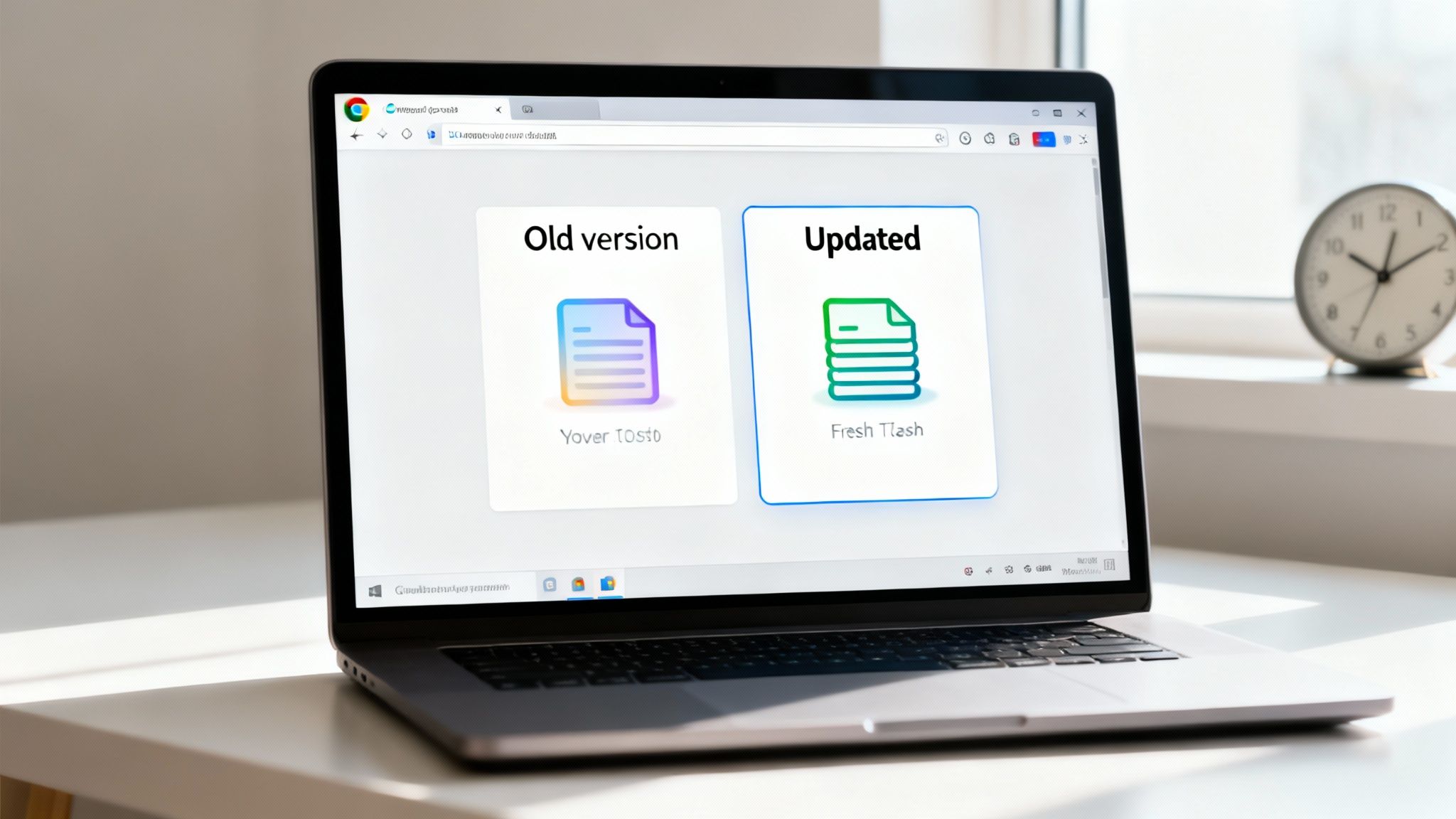
Picture the cache as a local scrapbook on your computer. When you visit a website, Chrome snips out pieces of it—images, logos, stylesheets (the code defining colours and fonts)—and glues them into this scrapbook. The next time you pop by that same site, Chrome just flips open the scrapbook instead of fetching everything all over again from the website's server. It’s a clever trick that makes pages load much, much faster.
The Problem with Caching
While caching is fantastic for performance, it hits a snag the moment a website gets updated. Your browser, in its attempt to be efficient, might keep showing you the old files from its scrapbook, completely oblivious to the fresh new version waiting on the server.
This is where understanding the different types of refreshes becomes crucial:
- Normal Refresh (F5 or Ctrl+R): Think of this as asking a barista for "the usual." Your browser might check for a few new things but will happily reuse many of the old, cached ingredients it already has.
- Hard Refresh (Ctrl+Shift+R): This is more like telling the barista, "Forget my usual, I want a completely new pot of coffee brewed from scratch." It forces Chrome to ignore its local scrapbook and download every single file directly from the source.
- Empty Cache and Hard Refresh: This is the nuclear option. It's like throwing out your old coffee pot, buying a new one, and then brewing a fresh batch. It erases everything first.
The core issue isn't a bug; it's a feature working exactly as intended. Caching prioritises speed, but when content freshness is critical, you need to manually override it with a hard refresh. You can explore more about the importance of fresh data in our article on data freshness in programmatic SEO.
In Germany, where Google Chrome holds a massive 53.94% market share, these techniques are incredibly relevant. It means that whenever developers push out frequent updates, more than half of all web users in the DE region might run into caching problems that a quick hard refresh can solve. You can learn more about browser usage statistics in Germany on Statcounter.
Once you grasp the "why" behind outdated content, troubleshooting becomes a lot less mysterious. It’s not that the website is broken; it’s just that your browser is holding on a little too tightly to the past.
The Fastest Way to Hard Refresh on Desktop
When a website is acting up or just won't show the latest changes, you don’t have time to dig through menus. You need a fix, and you need it now. This is where keyboard shortcuts come in—they're the quickest, most direct way to trigger a browser hard refresh in Chrome.
This simple action forces your browser to completely ignore the old files it has stored for that page and download a fresh copy straight from the server. It’s a real lifesaver.
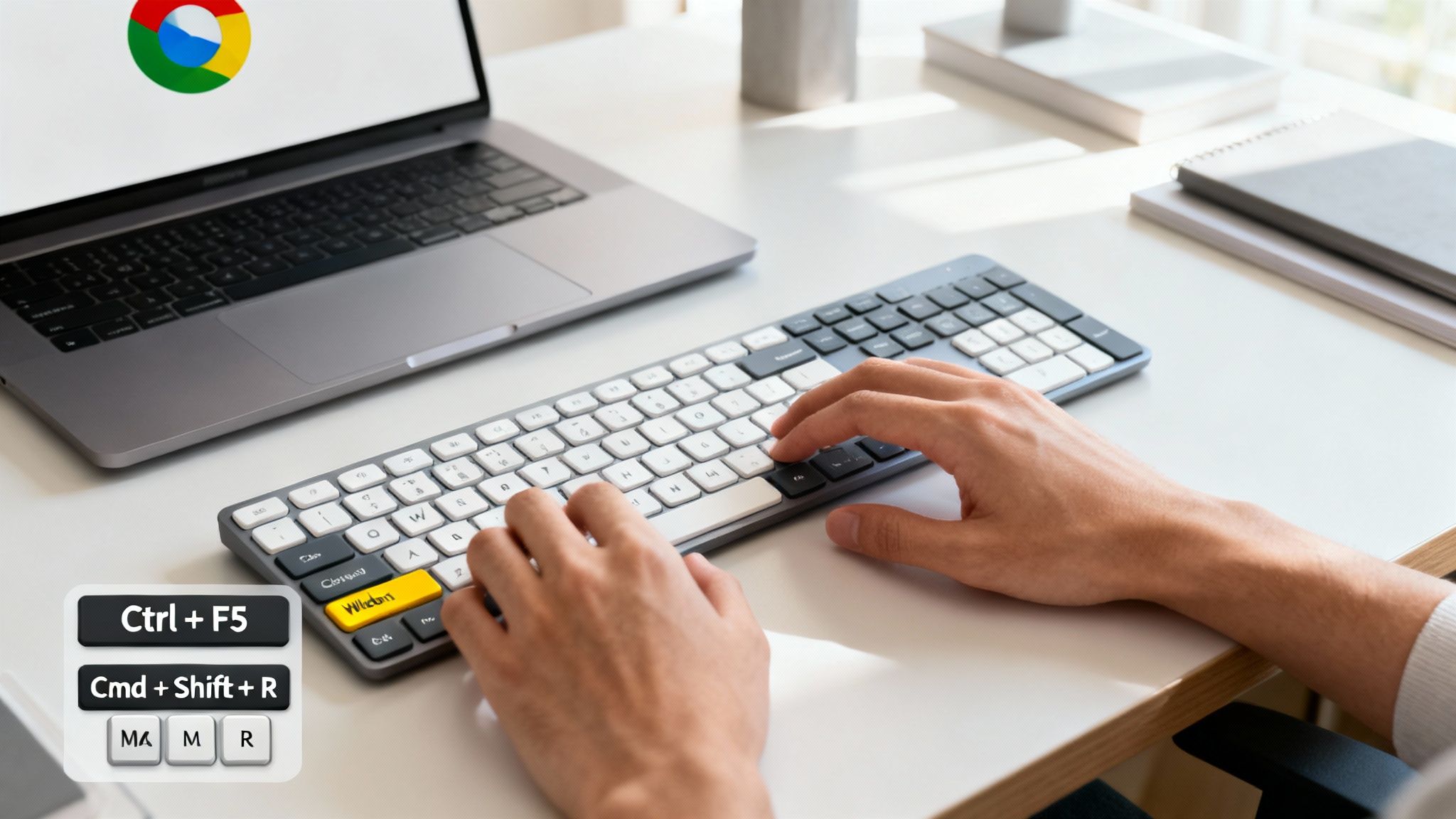
Think of these commands as your first line of defence against stubborn caching problems. For anyone who builds, designs, or manages websites, knowing them is non-negotiable.
Real-World Scenario: A Designer's Dilemma
Picture this: you're a web designer putting the final touches on a client's new homepage. You've just pushed a tiny CSS update to change a button from blue to green. But every time you reload, it’s still blue. The client is waiting, and your frustration is mounting.
This is a classic case for a hard refresh. Instead of a standard reload, you use the right shortcut for your system. This forces Chrome to bypass the old, cached CSS file (with the blue button) and grab the new one you just uploaded. Instantly, the button turns green. Problem solved.
Knowing this shortcut is vital for accurately checking recent changes, which directly impacts everything from design to page performance. You can read more about how these metrics affect SEO in our guide on Core Web Vitals.
This isn't just a niche developer trick. In Germany, where Chrome commands a massive 51.58% of the desktop browser market, countless users run into these little glitches daily. With Chrome's rapid 4-week update cycles, cache mismatches are incredibly common, making shortcuts like Cmd+Shift+R or Ctrl+F5 essential for everyone. You can dig into the data yourself on Germany's desktop browser market on Statcounter.
Chrome Hard Refresh Shortcuts for Desktop
Memorising the right key combination turns a frustrating five-minute problem into a two-second fix. No menus, no fuss—just an instant, fresh version of the page.
Here’s a quick reference table to help you find the shortcut for your operating system.
| Operating System | Primary Shortcut | Alternative Shortcut |
|---|---|---|
| Windows | Ctrl + F5 |
Ctrl + Shift + R |
| macOS | Cmd + Shift + R |
Shift + Reload Button |
| Linux | Ctrl + Shift + R |
Ctrl + F5 |
Once you’ve used these a few times, they become pure muscle memory.
Pro Tip: If you're a macOS user who prefers the mouse, the "Shift + Reload Button" trick is fantastic. Just hold down the
Shiftkey and click that circular arrow icon in your browser toolbar. It does the exact same thing as the keyboard shortcut.
Diving Deeper with DevTools for a More Powerful Refresh
Ever had one of those days where a keyboard shortcut just doesn't cut it? You're hitting Ctrl+Shift+R over and over, but the website stubbornly refuses to show your latest changes. When you get to this point, it's time to pull out the secret weapon built right into Chrome: the Developer Tools, or "DevTools" as they're commonly known.
Don't let the name intimidate you. While it sounds technical, using DevTools for a more powerful refresh is surprisingly straightforward. It simply gives you a level of control that standard shortcuts can't match, turning a frustrating caching bug into a quick fix. This is the go-to method for developers, but it's incredibly practical for anyone stuck with a persistent display issue.
First things first, you need to open the DevTools panel. You’ve got a couple of easy ways to do this:
- The Shortcut Route: Just press
Ctrl+Shift+I(on Windows or Linux) orCmd+Option+I(on macOS). - The Menu Route: Click the three-dot menu in the top-right corner of Chrome, head to More Tools, and then select Developer Tools.
With the DevTools panel open, the real magic is just a right-click away.
Unlocking the Advanced Refresh Options
Once DevTools is active on your screen, simply right-click (or if you're on a Mac, you can just long-press) the standard circular refresh icon next to your address bar. This simple action reveals a hidden context menu with some seriously powerful choices.
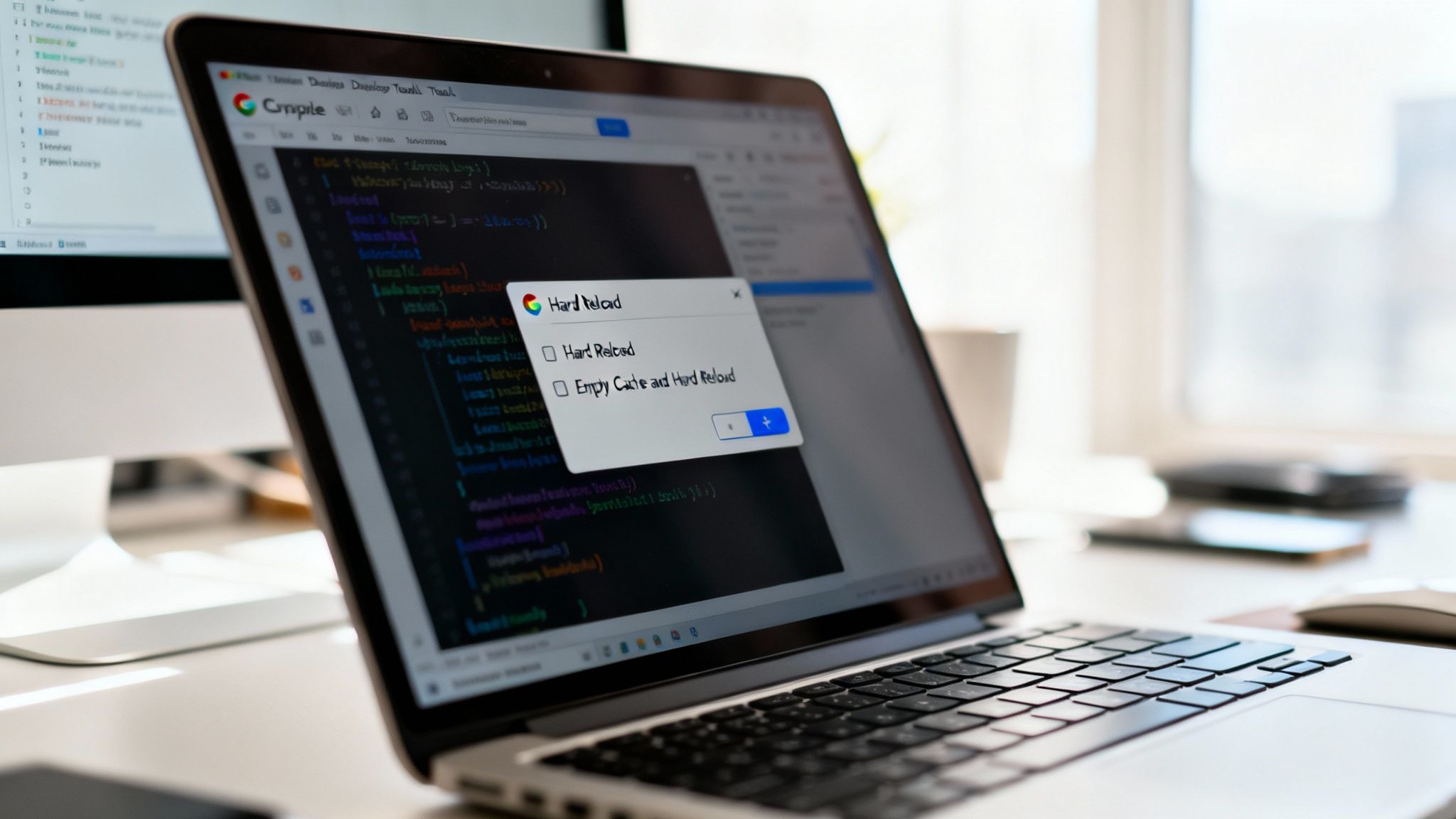
This little menu is your key to performing a much more thorough browser hard refresh in Chrome when the usual methods just aren't enough.
You’ll see three options, but for our troubleshooting purposes, the last two are the ones that really matter:
- Hard Reload: This does exactly the same thing as the
Ctrl+Shift+RorCmd+Shift+Rshortcut. It forces the browser to bypass the cache for the current page you're on, but it doesn't touch the files already stored in the cache. - Empty Cache and Hard Reload: This is the nuclear option. It first wipes out all cached files for all websites you've visited, and then it performs a hard reload of the current page.
When to Go for the "Empty Cache and Hard Reload"
Let's paint a picture. You're a developer testing a new feature, but an old, squashed bug keeps rearing its ugly head, no matter how many times you hard refresh. This is the perfect scenario to bring out the "Empty Cache and Hard Reload" option.
What's likely happening is that a corrupted file—maybe a dodgy script or a broken stylesheet—is stuck in your cache and messing with the page. A simple hard reload might not be enough to kick it out. By choosing to empty the cache first, you guarantee that every single asset gets re-downloaded from scratch. This completely eliminates any chance of old, broken files causing trouble.
Think of this method as the ultimate reset button. It ensures a completely "untainted" page load and is your best bet when you suspect a cached file is the root cause of an issue, not just an outdated one.
Tools like this are essential in a fragmented browser market. In Germany, for instance, Chrome 140.0 commands a significant 21.74% of the desktop market, but countless other versions are also in active use. This means developers have to ensure their updates work correctly across a wide range of browser builds. "Empty Cache and Hard Reload" becomes a critical step in testing to prevent stale assets from being served. You can explore more insights on Germany's browser version market share on Statcounter.
This advanced technique is particularly useful for modern websites that rely heavily on JavaScript for their core functionality. It ensures the correct rendering logic is always loaded fresh from the server. For a deeper look into this topic, check out our guide on dynamic rendering for modern websites.
Forcing a Refresh on Mobile Chrome
When you're browsing on your phone, you don't have the luxury of those handy keyboard shortcuts. This makes forcing a refresh a bit more hands-on, requiring a quick dive into the settings menu.
While it isn't as instantaneous as on a desktop, it’s the most reliable way to fix those stubborn loading issues you run into on the go. The goal is to clear out the cached data for a specific website, which is the closest you can get to a browser hard refresh in Chrome on a mobile device.
Clearing Site Data on Android
Picture this: you're on an e-commerce site, and a new sale price just refuses to show up, no matter how many times you pull down to refresh. That’s a classic caching problem right there.
To fix it on Android, you’ll want to clear the data for that single site.
- First, open Chrome and tap the three-dot menu in the top-right corner.
- Head into Settings, then scroll down to find Site settings.
- Tap on All sites to see a full list of every website that has stored data on your device.
- Now, find and select the website that’s giving you trouble.
- On the next screen, you’ll see a Clear & reset button. Tap it, and then tap it again on the confirmation pop-up to finish the job.
This little manoeuvre deletes all locally stored data for that specific domain—cache and cookies included. The next time you visit, Chrome will be forced to download a completely fresh version of the site.
This method is especially crucial as more and more web traffic shifts to mobile. Making sure a site loads correctly on a phone is vital for both user experience and search rankings. You can learn more about why this matters in our guide to mobile-first indexing.
Clearing Site Data on iOS
The process on an iPhone or iPad is pretty similar, though the menus are laid out a bit differently. If you're stuck with that same outdated sale price on your favourite online shop, you'll need to dig into Chrome's more advanced settings.
Here’s how you get it done on iOS:
- Open the Chrome app and tap the three dots, which you'll find in the bottom-right corner.
- Choose Clear Browsing Data from the menu that pops up.
- Here’s the important part: make sure only Cached Images and Files is ticked. You can untick everything else, like Cookies, Site Data, and Browsing History, to avoid losing them.
- Finally, tap Clear Browsing Data at the bottom to confirm.
Unlike its Android counterpart, the iOS version of Chrome doesn't offer an easy way to clear data for just one site. You have to clear the entire cache. It’s a bit of a blunt instrument, for sure, but it's the most reliable way to force a fresh download of all website assets and sort out any display issues.
What to Do When a Hard Refresh Fails
It’s one of the most frustrating moments for any developer or web enthusiast: you’ve performed a browser hard refresh in Chrome, maybe even dug into DevTools, and the old content just stubbornly refuses to disappear. When this happens, it's a huge clue that the problem isn't on your machine at all.
The issue almost certainly lies further upstream with something called server-side caching. Think of it as a much bigger, more powerful version of your browser's cache that lives out on the internet, not on your computer.
Beyond Your Browser's Cache
Many modern websites rely on a Content Delivery Network (CDN) to speed up loading times for visitors all over the world. A CDN is essentially a network of servers that keeps copies of a website in various geographical locations.
When you visit a site, the CDN serves you the files from a server physically closest to you, which is great for speed. The catch? Just like your browser, the CDN itself can sometimes hang onto an old version of the website's files. No amount of hard refreshing on your end can force a CDN on the other side of the world to update its cache.
This flowchart quickly breaks down the first steps for troubleshooting on mobile, where these issues are especially common.
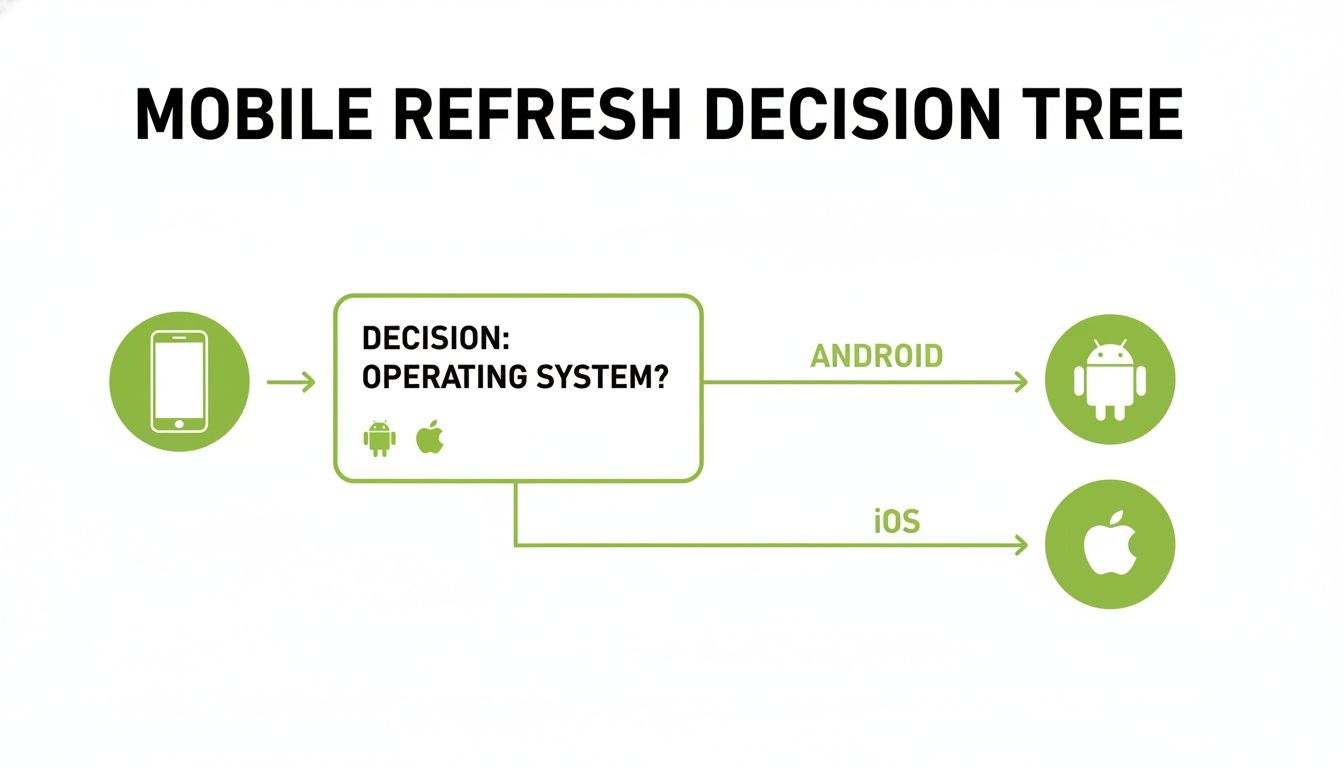
This visual guide helps simplify the process by pointing you down the right troubleshooting path depending on your phone's operating system.
Another culprit could be application-level caching. This is where things like service workers are programmed to serve cached content aggressively, making web apps feel faster and enabling them to work offline.
Actionable Steps for Troubleshooting
So, what's a practical way to figure out where the breakdown is happening? Your goal is to isolate the variable. Start by ruling out any issues on your end before you point the finger at a server-side problem.
Here are a few simple but effective diagnostic steps:
- Try an Incognito Window: Pop open a new Incognito window in Chrome (Ctrl+Shift+N or Cmd+Shift+N) and head to the site. Incognito mode generally ignores existing caches and doesn't use most extensions, which can occasionally interfere with how a page loads.
- Use a Different Network: This is a classic. Switch from your Wi-Fi to a mobile hotspot. If the site loads correctly on your phone's data connection, the problem might be tied to your local network's own caching or DNS settings.
- Append a Cache-Busting Parameter: Here's a slightly more technical trick that works wonders. Go to the URL in your address bar, add
?v=123to the very end of it, and hit Enter. The numbers can be anything random. This little addition makes the server think you're requesting a completely new page, forcing it to bypass many layers of caching.
By systematically testing these different scenarios, you can quickly narrow down whether the stale content is due to your local setup or a more complex server-side issue. It's a fundamental concept in web development and a crucial part of managing content delivery.
Getting a handle on these different layers is vital for anyone managing a large-scale content project. You can dive deeper into this topic by reading our detailed guide on effective caching strategies for SEO.
If none of these steps work, the issue is almost certainly with the website's server configuration. At that point, your best bet is to contact the site administrator.
Got Questions About Hard Refreshes?
Even with all the shortcuts, a few common questions always seem to pop up when you're forcing a page to reload. Let's clear the air so you know exactly what’s happening under the hood when you perform a browser hard refresh in Chrome.
One of the biggest worries I hear is about data loss. Will a hard refresh wipe out your saved passwords or browsing history? The answer is a simple, resounding no.
A hard refresh is a precision tool. It’s laser-focused on just one thing: forcing the browser to re-download the files for the single webpage you’re looking at. Your passwords, bookmarks, history, and other saved browser data are completely safe.
It's the perfect non-destructive first step for troubleshooting a misbehaving page. It's built to fix rendering issues, not to nuke your browser's settings.
Hard Reload vs. Empty Cache and Hard Reload
If you've poked around in Chrome's DevTools, you've probably seen two very similar-sounding options: "Hard Reload" and "Empty Cache and Hard Reload." They might look alike, but they do very different jobs. Knowing when to use each one is key.
Hard Reload: This is your standard-issue hard refresh. It does the exact same thing as hitting
Cmd+Shift+RorCtrl+F5. It tells Chrome to ignore the cached files for this specific page load but doesn't actually delete anything from your cache folder. It’s your go-to for 99% of day-to-day issues where you just need to see the latest version of a stylesheet or script.Empty Cache and Hard Reload: This one is the big hammer. It’s a much more powerful command that first wipes your browser's entire cache for every website you've ever visited. Only then does it proceed to reload the current page from the server. You'll want to use this when you suspect a corrupted file somewhere in your cache is causing problems across multiple sites, not just the one you're on.
Why Do Some Websites Always Seem to Need a Refresh?
Ever find yourself constantly having to hard refresh the same one or two websites? It's probably not your browser's fault. More often than not, the culprit is how that specific site is configured on the server.
This is super common on sites that change all the time, like news portals or sites actively being worked on by developers. They often use aggressive server-side caching to speed things up for most visitors. This caching tells your browser to hang onto old files for a long time, meaning you have to manually trigger a browser hard refresh in Chrome to see the latest content before that cache is scheduled to expire on its own.
At Programmatic SEO Hub, we're dedicated to helping you master the technical nuances of web performance and content strategy. Explore our guides and tools to scale your online presence effectively at https://programmatic-seo-hub.com/en.